Automatically Change Mac Settings Based on Wi-Fi, Bluetooth, or Location
You sit down at your work desk, plug in your monitor, and nothing happens. Your Mac does not know you are there. The wallpaper is still the same one from your couch. The audio output is still pointed at your laptop speakers. The printer is still whatever you had set at the coffee shop. You change everything by hand, as usual, and get on with your day.
There is an app that fixes this. It watches what your Mac connects to, where it is, and what time it is, then fires a set of actions automatically. Connect to your office Wi-Fi: wallpaper changes, VPN mounts, Slack opens. Plug in your headphones: audio switches, Spotify launches, microphone goes to your headset. The app is called Profiles Switcher, and this post covers how it works, how it compares to every alternative, and how to set it up in under five minutes.
Profiles Switcher is available on the Mac App Store.
Get Profiles Switcher Private by design. All data stays on your Mac.What macOS Gets Right and What It Gets Wrong
macOS does include a feature for managing different network configurations: Network Locations. You can save groups of network settings (proxy, DNS, VPN config) under names like "Home" and "Office," then switch between them from the Apple menu.
The catch: switching is always manual. macOS does not detect which Wi-Fi network you joined and switch your location automatically. The feature was designed for IT administrators who need to ship laptops with pre-configured network profiles, not for people who want their Mac to adapt to its surroundings throughout the day.
The Shortcuts app on iPhone and iPad does support Wi-Fi triggers: you can set up an automation that fires when your phone joins a specific network. On Mac, that trigger category does not exist. Automation on macOS Shortcuts, as of 2026, still requires you to run a shortcut by hand or use a time-of-day schedule. The environmental awareness that iPhone users take for granted is simply not there on the Mac side.
This is the gap. Your Mac is capable of changing almost any system setting programmatically. What it lacks is a layer that watches the environment and decides when to do it.
Meet Profiles Switcher: The App That Fills the Gap
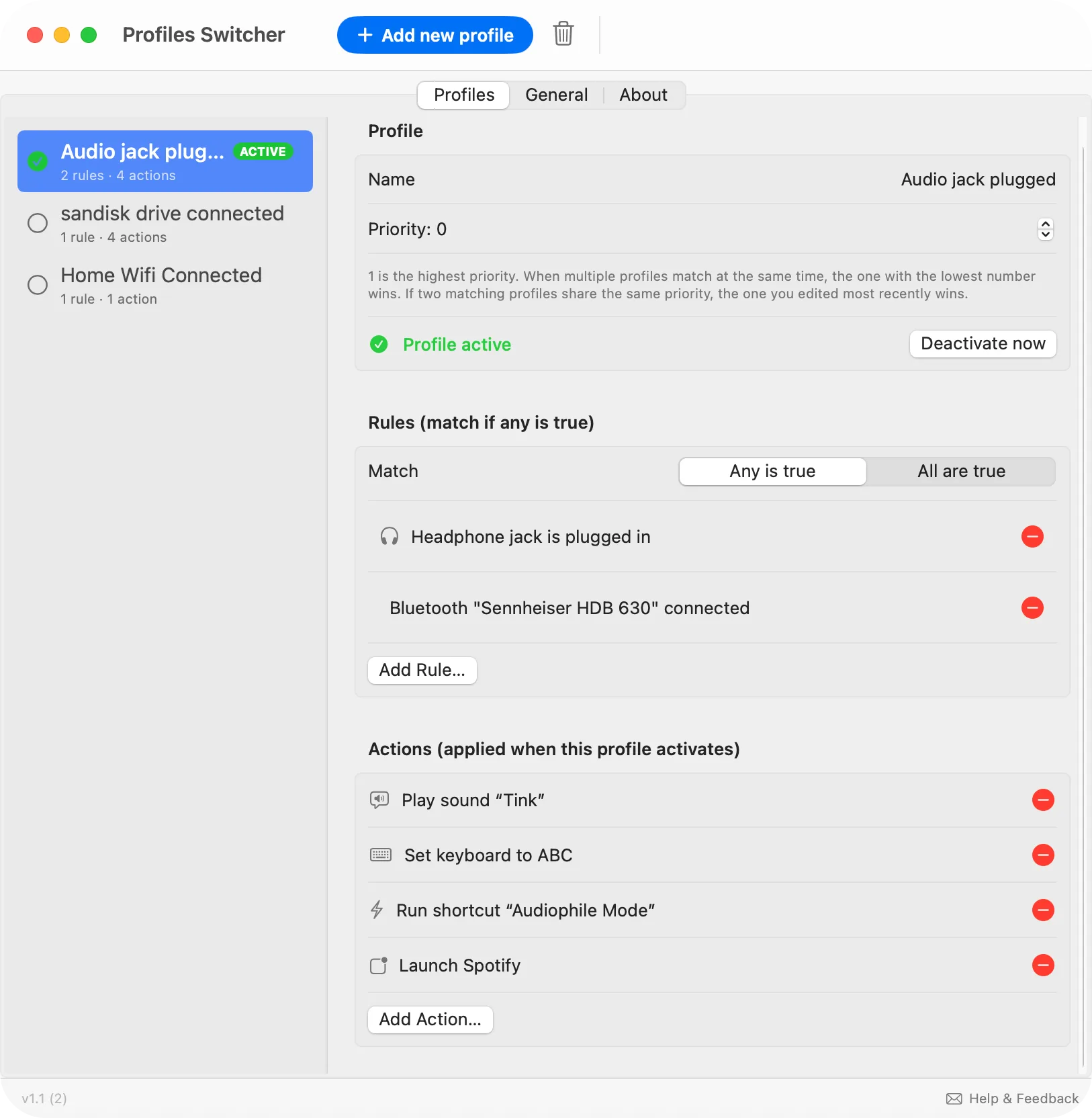
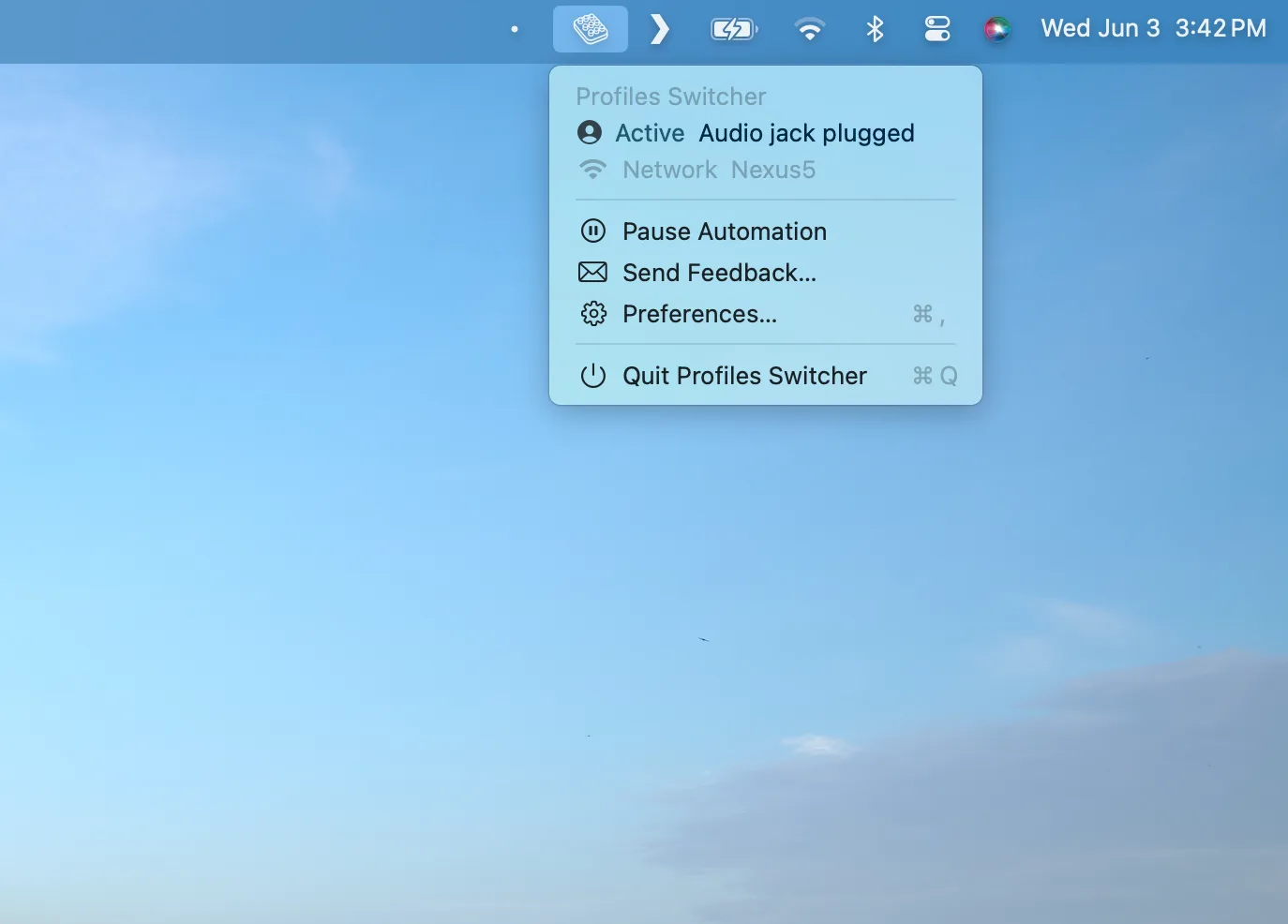
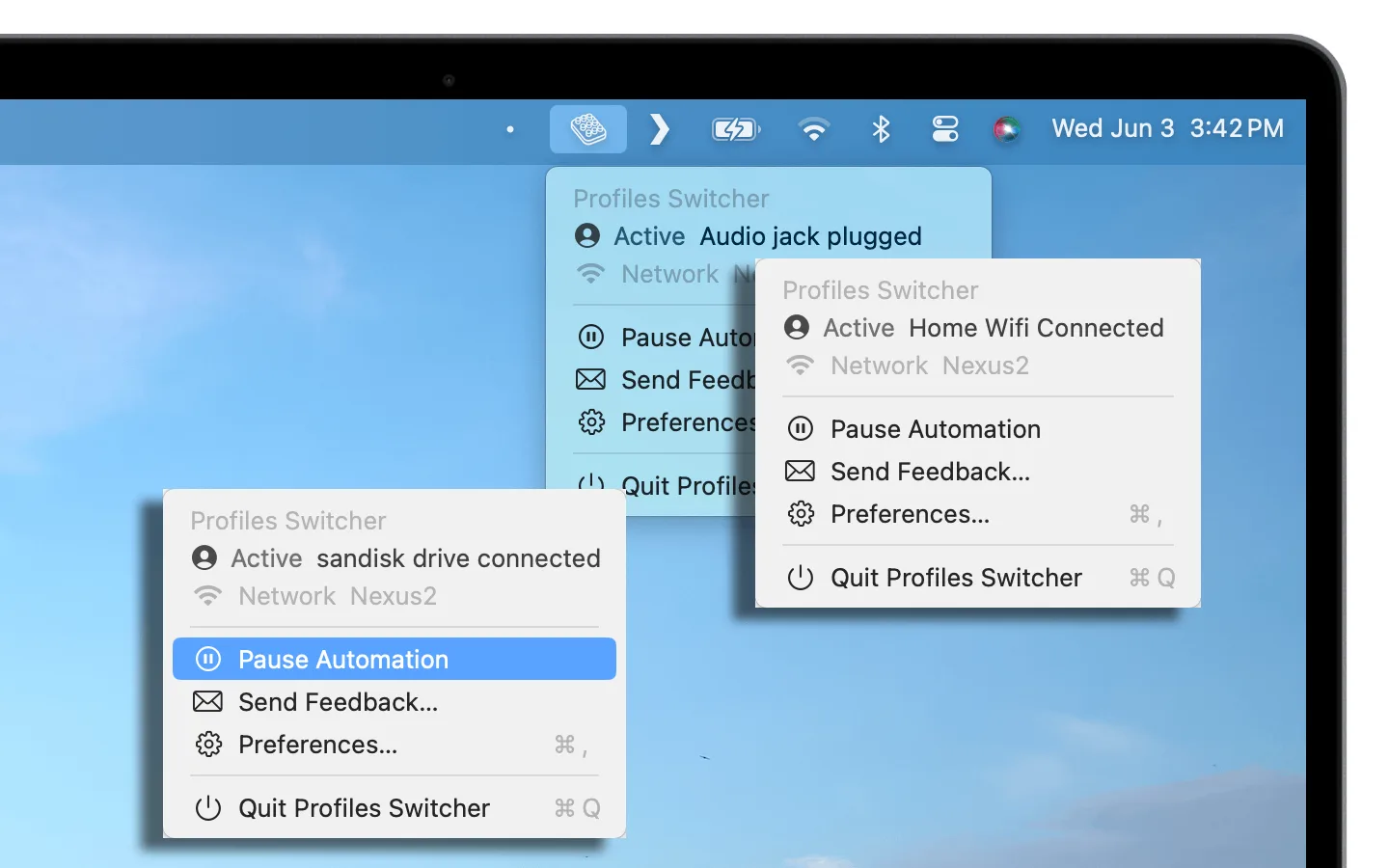
Profiles Switcher is a macOS menu bar app. It runs silently in the background, watching a set of conditions you define. When those conditions are met, it activates a profile: a named bundle of actions that fire together.
What Is a Profile?
A profile has three components:
- Triggers: the environmental conditions that must be true (joined Wi-Fi network "HomeNetwork", Bluetooth device "AirPods" connected, time between 09:00 and 17:00, and so on).
- Match mode: whether any trigger activates the profile, or whether all of them must be true at once.
- Actions: what happens when the profile becomes active (switch audio output, set wallpaper, launch an app, run a Shortcut, mount a network drive, and more).
Profiles are independent and composable. Multiple profiles can be active at the same time, so a Wi-Fi profile and a display profile and a time profile can all fire simultaneously without interfering.
Sounds useful? Download Profiles Switcher
26 Triggers: Every Context Your Mac Can Detect
Network and Connectivity Triggers
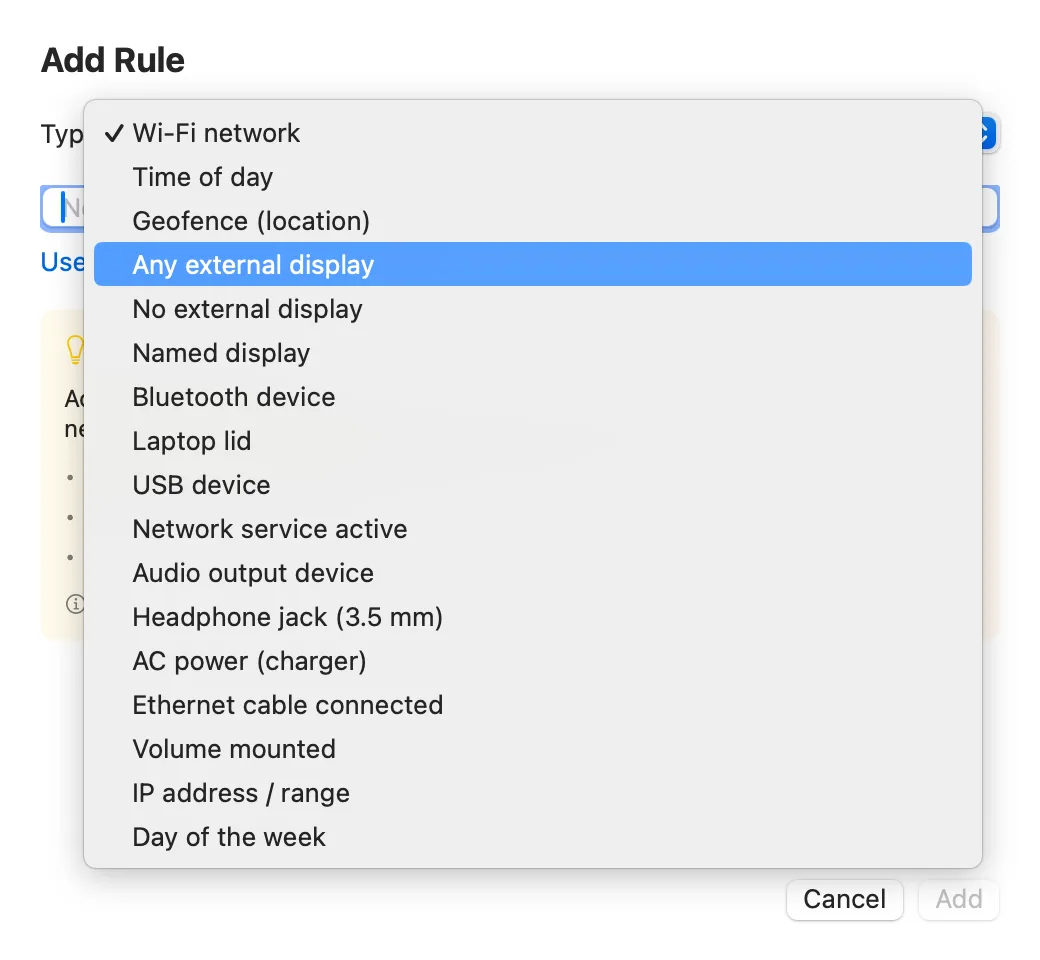
- Wi-Fi network: fires when your Mac joins a specific SSID, or any Wi-Fi network, or leaves Wi-Fi entirely.
- Ethernet cable connected: activates when a wired connection becomes active, useful for docking stations.
- Network service active: watches for a named network interface, including VPN tunnels.
- IP address / range: checks whether your current local or public IP falls inside a given subnet, handy for office VLANs or when traveling between networks with similar SSIDs.
Location and Hardware Triggers
- Geofence (location): uses Core Location to define a circular region on a map. Activates when you arrive or leave.
- Bluetooth device: fires when a specific Bluetooth peripheral connects or disconnects.
- External display: detects any external display, no external display, or a specific named monitor by model.
- Laptop lid: watches for the lid opening or closing, which is useful for clamshell setups.
- USB device: fires when a specific USB device (keyboard, dock, drive, camera) is attached or removed.
- Headphone jack (3.5 mm): detects when analog headphones are plugged in or unplugged, separate from Bluetooth audio.
- Volume mounted: activates when a disk, drive, or network volume is mounted.
- Audio output device: watches the active output device, firing when it changes to or from a specific speaker or DAC.
Time, Power, and System Triggers
- Time of day: activates during a time window you specify (for example, 08:30 to 17:30).
- Day of the week: limits a profile to weekdays, weekends, or specific days.
- AC power (charger): fires when your MacBook is plugged in or running on battery.
- Battery level: activates when battery crosses a threshold in either direction.
- Low Power Mode: responds to Low Power Mode turning on or off.
- System appearance: fires when macOS switches between Light and Dark mode, useful if you set Dark mode on a schedule via Focus.
- Time zone: activates when macOS changes your time zone, which happens when you travel or when the system auto-adjusts.
18 Actions: What Happens When a Profile Fires
Audio and Sound Actions
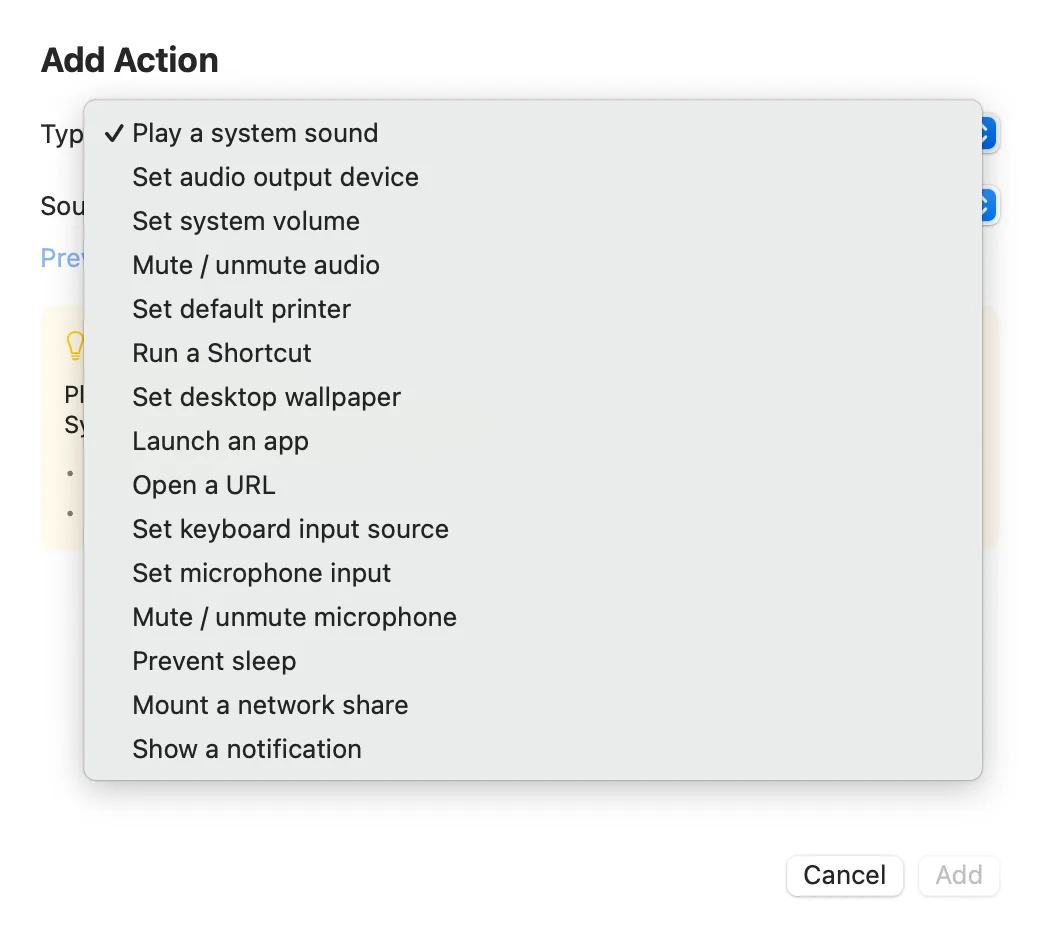
- Set audio output device: switches the system default output to any installed device (speakers, DAC, AirPlay, HDMI).
- Set system volume: sets the output volume to an exact level.
- Mute / unmute audio: mutes or unmutes the output without changing the volume level.
- Set microphone input: switches the active input device.
- Mute / unmute microphone: mutes or unmutes the input independently of the output.
- Play a system sound: plays any installed macOS system sound when the profile activates, useful as a subtle confirmation cue.
- Speak text aloud: reads a custom string using any installed macOS voice, handy for announcements or status feedback.
App and Workflow Actions
- Launch an app: opens any installed application.
- Hide a running app: hides an application's windows without quitting it.
- Open a URL: opens a web address or deep link in any installed browser.
- Run a Shortcut: runs any shortcut from the macOS Shortcuts app. This is the bridge to any automation you already have built there.
- Open a file or folder: opens a specific path in its default app, or reveals it in Finder.
System and Display Actions
- Set desktop wallpaper: switches to a system wallpaper or a custom image you choose, per display.
- Set keyboard input source: changes the active keyboard layout or input method.
- Set default printer: points the system at a specific printer, so documents always print to the right one without manual switching.
- Mount a network share: connects to an SMB, AFP, NFS, or WebDAV share automatically when the network is available.
- Prevent sleep: keeps the Mac or just the display awake while the profile is active.
- Show a notification: sends a macOS notification, useful for confirming that a profile activated.
Real Setups People Use
- Home to office Wi-Fi Trigger: Wi-Fi network "OfficeWPA". Actions: set wallpaper to a focused minimal background, switch audio output to the desk speaker, set default printer to the office laser printer, mount the shared team drive.
- Headphones in, work mode on Trigger: headphone jack plugged in AND Bluetooth headset connected. Actions: play a soft click, switch audio output to the headset, set keyboard layout to ABC, run the Shortcuts workflow "Audiophile Mode", launch Spotify.
- External display attached Trigger: named display "LG 27" connected. Actions: launch the project management app, open the kanban board URL in Arc, set the default printer to the studio printer, keep the display awake.
- Weekday mornings Trigger: time window 08:45 to 09:00 AND day of week Monday through Friday. Actions: show a notification "Good morning, stand-up in 15 minutes", launch Slack, open the daily planner URL.
- Battery below 20 percent Trigger: battery level crosses below 20%. Actions: speak text "Battery low, please plug in", show a notification, enable Low Power Mode via a Shortcut.
Any of these fit your day? Get Profiles Switcher
How Profiles Switcher Compares to the Alternatives
Several apps have tried to solve context-aware Mac automation over the years. Here is where they stand today.
| App | Status | Triggers | Actions | Apple Silicon | App Store | No Scripting | On-device |
|---|---|---|---|---|---|---|---|
| Profiles Switcher this post | Active | 26 | 18 | ✓ | ✓ | ✓ | ✓ |
| Shortery | Active | ~17 | Via Shortcuts | ✓ | ✓ | ✓ | ✓ |
| Trypa | Active | ~12 | Via Shortcuts | ✓ | ✓ | ✓ | ✓ |
| ControlPlane | Discontinued, broken on Apple Silicon | ~20 | ~15 | ✗ | ✗ | ✓ | ✓ |
| MarcoPolo | Discontinued (2009) | ~15 | ~10 | ✗ | ✗ | ✓ | ✓ |
| Hammerspoon | Active | Unlimited* | Unlimited* | ✓ | ✗ | ✗ Lua required | ✓ |
| Keyboard Maestro | Active | Limited | Very wide | ✓ | ✗ | Partial | ✓ |
| Apple Shortcuts (Mac) | Built-in | Schedule only | Wide | ✓ | ✓ | ✓ | ✓ |
| Sidekick | Discontinued | Location only | Limited | ✗ | ✗ | ✓ | ✓ |
* Hammerspoon supports any trigger and action you can write in Lua. Keyboard Maestro trigger count is lower for environmental conditions specifically; its macro engine is broader. Data current as of June 2026.
26 triggers. 18 actions. No scripting. No cloud.
Download on the Mac App StoreReady to switch? Download on the Mac App Store
Coming from ControlPlane or MarcoPolo?
If you used ControlPlane, you already understand the concept. The terminology is different but the logic maps directly:
- ControlPlane evidence sources correspond to Profiles Switcher triggers.
- ControlPlane actions correspond to Profiles Switcher actions.
- ControlPlane contexts correspond to Profiles Switcher profiles.
The main practical difference is that ControlPlane used a confidence-score system (each evidence source contributed a weighted score toward activating a context). Profiles Switcher uses explicit boolean rules instead: a profile activates when its trigger conditions are met, not when a confidence level crosses a threshold. For most users, this is simpler to reason about.
ControlPlane itself has not had a meaningful update in years. On Apple Silicon Macs, many of its trigger watchers fail silently because they relied on Intel-era IOKit identifiers that do not exist on M-series hardware. It also is not notarized, so modern macOS Gatekeeper blocks it on first launch. There is no maintained fork that fixes these issues.
MarcoPolo, the ancestor that ControlPlane forked from, was last updated in 2009 and has the same problems at an even more fundamental level.
Sandboxed, Native, and Private
App Store Sandboxed: What That Means for Your Privacy
Profiles Switcher is distributed through the Mac App Store and is fully sandboxed. All data, including your profiles, rules, and actions, stays on your Mac. There is no account to create, no server to phone home to, no analytics. The app requests only the permissions needed for the features you use: location access for geofence triggers, full disk access if you set up wallpaper automation, and so on. You grant permissions in System Settings on your own terms.
Built for Apple Silicon: Native SwiftUI Performance
The app is written in SwiftUI and AppKit and runs natively on Apple Silicon. It does not use Rosetta emulation. The sensor watchers that were known to fail on M-series Macs (lid detection, display detection, headphone jack) have been rewritten to use CoreGraphics and CoreAudio lookups instead of hardcoded Intel-era IOKit paths. If you are on an M1, M2, M3, or M4 Mac, every trigger type is supported.
Set It Up in 5 Minutes
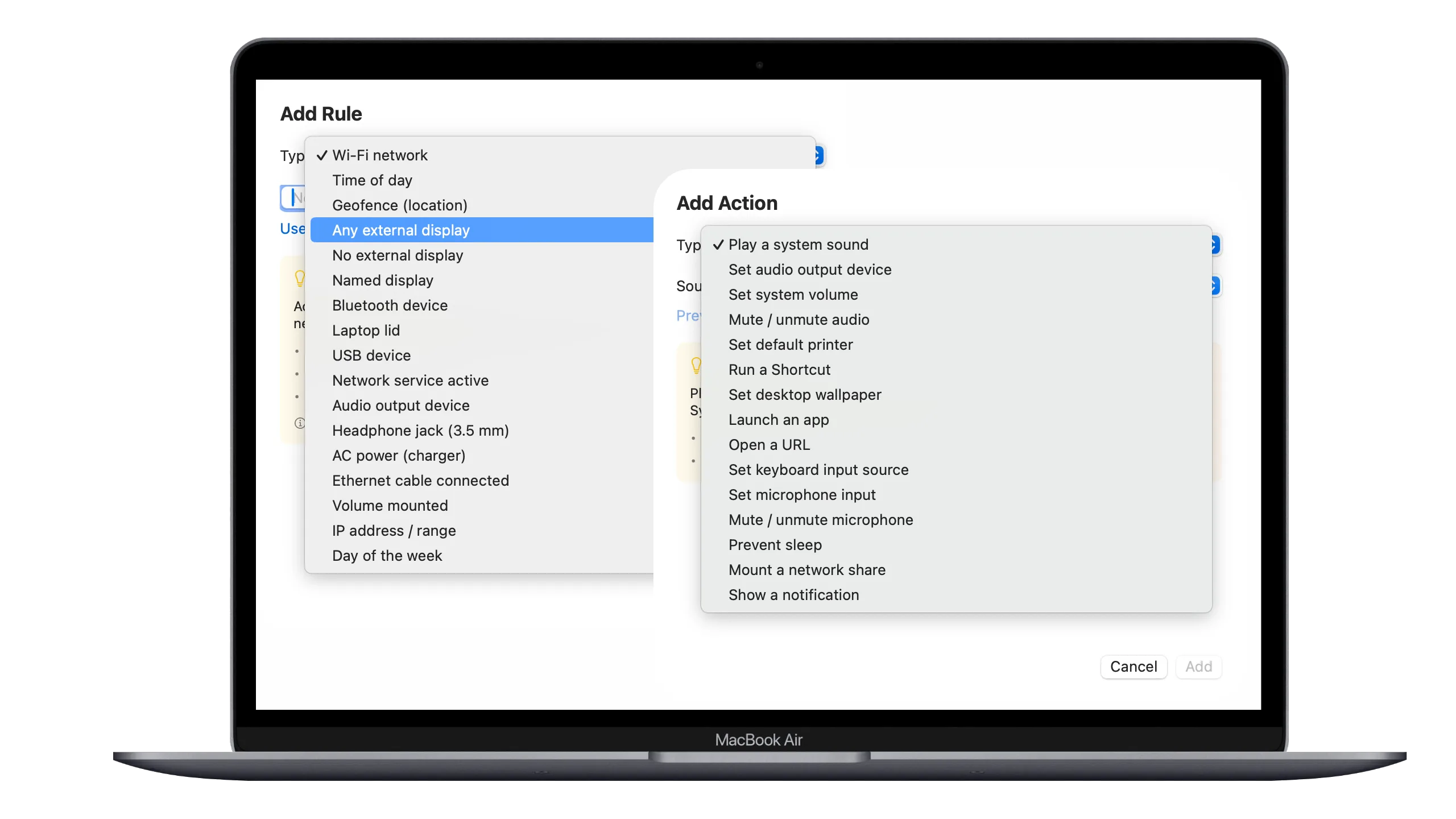
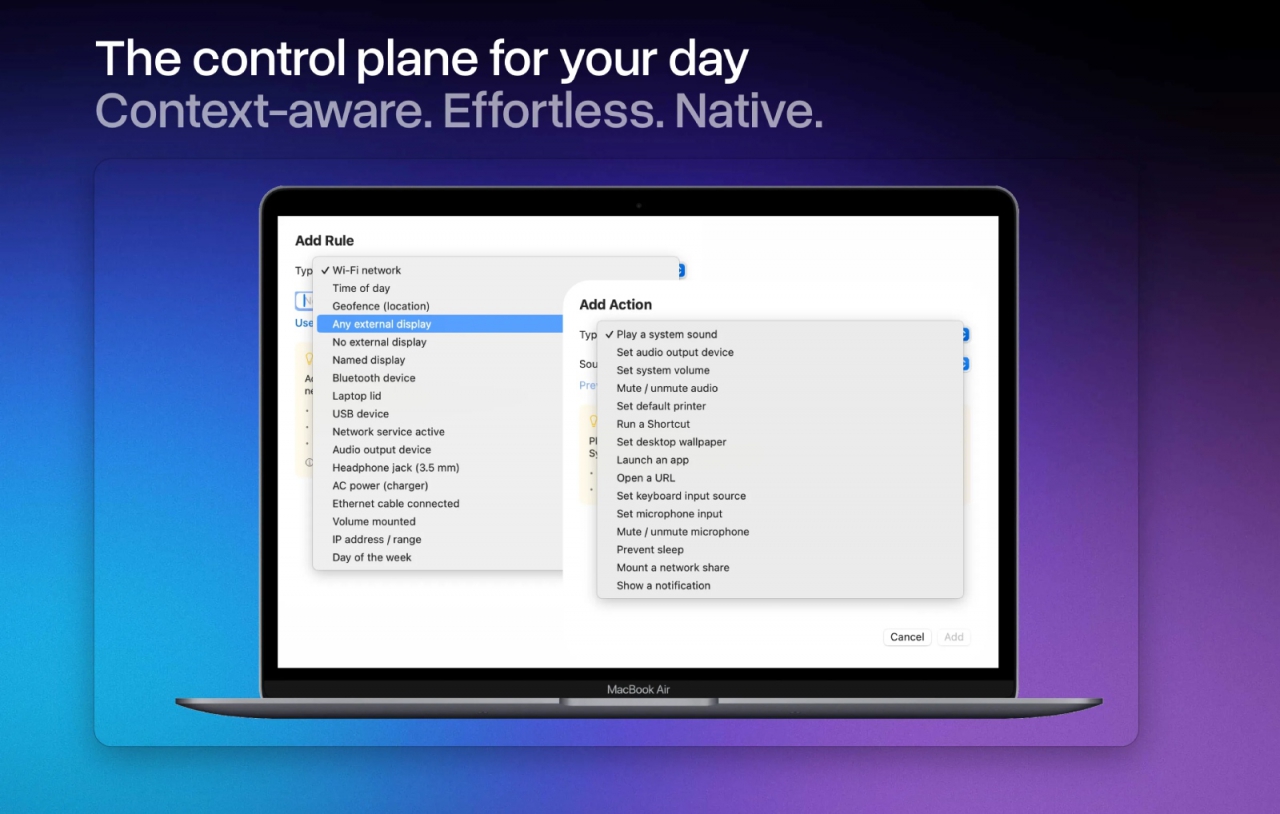
- Create a profile. Click the Profiles Switcher icon in your menu bar and open Preferences. Click "Add new profile" and give it a name that describes the context ("Home Wi-Fi", "Desk Setup", "Commute").
- Add a trigger. Click "Add Rule" and choose a trigger type from the dropdown. For a Wi-Fi trigger, select "Wi-Fi network" and type the network name. For a Bluetooth device, connect the device first so Profiles Switcher can detect it, then select it from the list.
- Add actions. Click "Add Action" and choose what should happen when the profile activates. Stack as many actions as you need in the same profile. When you are done, click "Activate now" to test it immediately, or leave it set to auto-activate and walk away.
The app runs in the background with no dock icon. From that point on, the profile fires automatically whenever its trigger conditions are met, without any further interaction from you.
Frequently Asked Questions
Not automatically. macOS has a Network Locations feature that groups network settings, but switching between them is always manual: you go to Apple menu and choose a location by hand. There is no built-in way to detect which Wi-Fi you joined and respond with actions. Profiles Switcher fills that gap, firing a set of actions the moment your Mac connects to a specified network.
Yes. Create a profile with a "Bluetooth device connected" trigger targeting your headphones, then add an action to set the audio output device to that same device. Profiles Switcher activates the moment the headphones pair, with no manual steps required.
ControlPlane is effectively abandoned. The project has not been meaningfully maintained in years, it was never updated for Apple Silicon, and it is not notarized, so Gatekeeper blocks it on modern macOS. Profiles Switcher is a sandboxed, App Store replacement that runs natively on M-series hardware.
Profiles Switcher is the closest replacement. It supports 26 context triggers, 18 native actions, is available on the Mac App Store, and runs natively on Apple Silicon. Other active options (Shortery, Trypa) route actions through Apple Shortcuts rather than executing them directly, which limits what they can do natively.
Yes. "Run a Shortcut" is one of the 18 built-in actions, so any workflow you already have in the Shortcuts app can be triggered by any of the 26 environment rules. Profiles Switcher gives Shortcuts on Mac the environmental trigger layer that Apple has not provided.
Yes. A Wi-Fi profile, a Bluetooth profile, and a time-of-day profile can all be active simultaneously when their triggers are met. Each profile has a priority number: if two active profiles would set the same thing to different values, the one with the lower priority number wins.
No. The app is fully on-device. Your profiles, rules, and actions are stored locally on your Mac. No account, no cloud sync, no external server. Network-based triggers like Wi-Fi detection use your Mac's own networking stack directly.
Your Mac, on autopilot.
Download Profiles Switcher Available on the Mac App Store. Requires macOS 13 or later. Works on Apple Silicon and Intel.